Table of contents
BIM software and architectural insertion
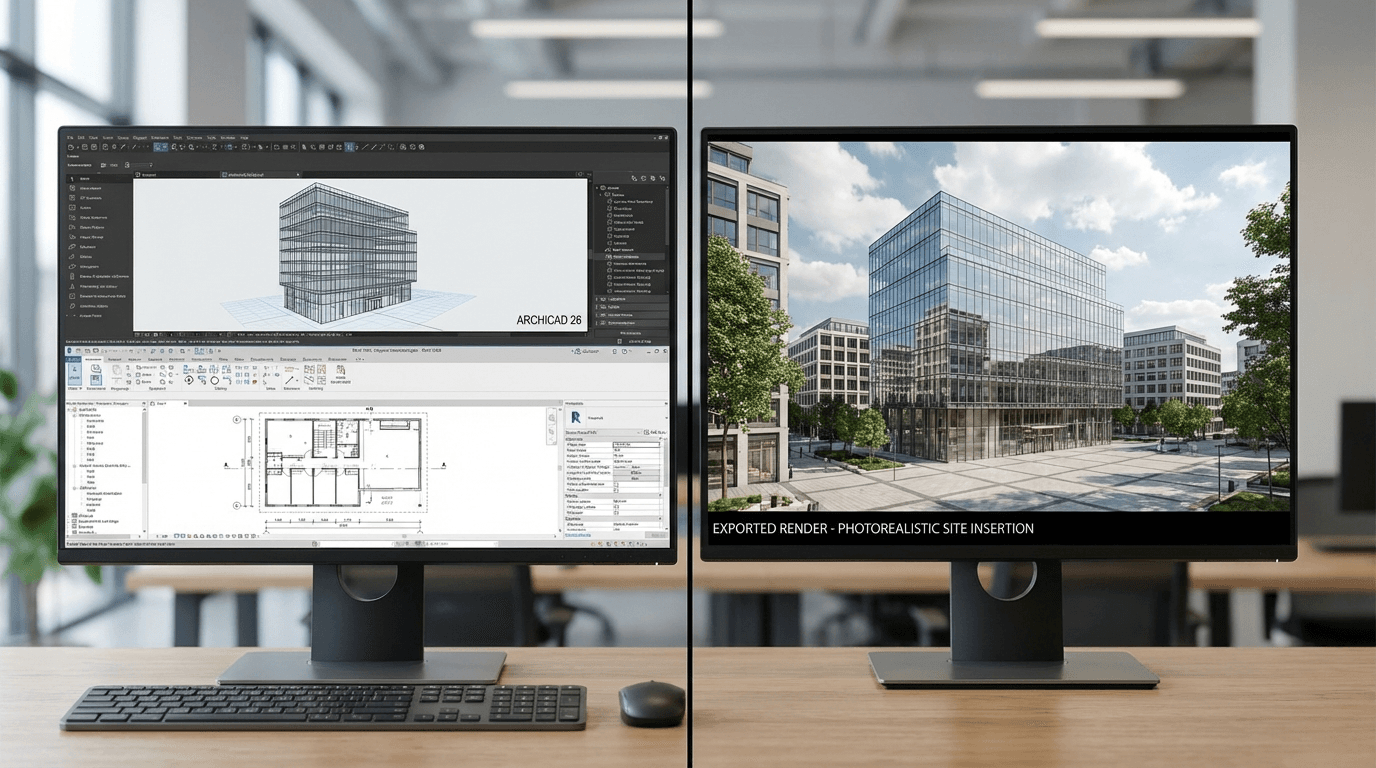
Archicad and Revit are the two most widely used BIM software in architecture firms. Both allow exporting renders suitable for architectural insertion.
Exporting from Archicad
- CineRender / Redshift engine: generate a photorealistic render directly from Archicad. Export as PNG without background
- 3D view export: File > Save As > Image. Minimum resolution 1920x1080
- Twinmotion / Lumion: export the final render as high-resolution PNG
Exporting from Revit
- Internal render: View > 3D Render. Set quality to "High" and export as PNG
- Image export: File > Export > Images and Animations
- Enscape / V-Ray: render plugins offer better quality exports
Common settings for optimal export
- Resolution: export at minimum 1920px wide
- Format: PNG for quality, JPG for lighter files
- Background: white or transparent preferred
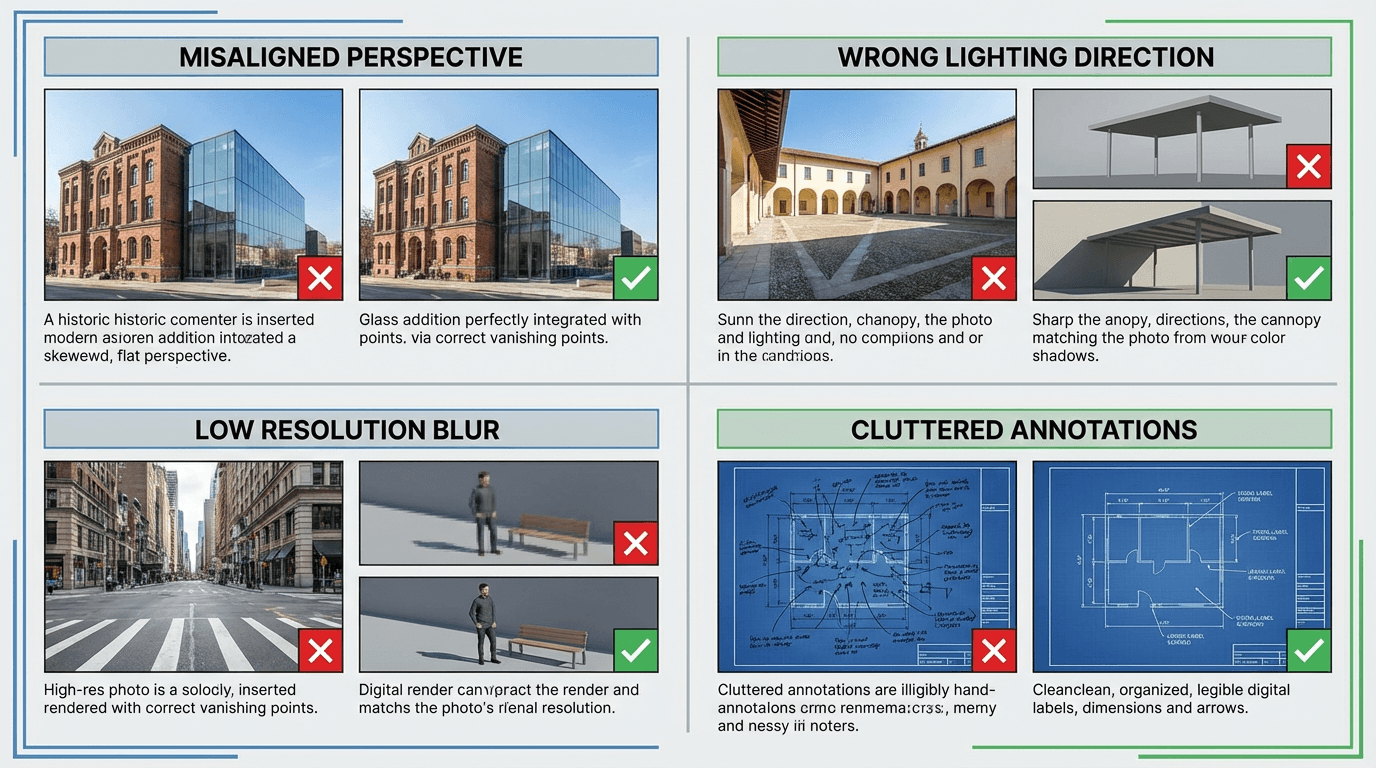
- Angle: match the camera angle with the site photo
- Clean up: remove grids, axes, dimensions, and annotations
Generating the insertion
Once your export is ready, the process is identical regardless of the source software.
Results by source software
In practice, insertion quality depends more on render quality than on the software used. A good SketchUp export will yield better results than a poor Revit export.
ArchicadRevitBIMexportworkflow