Table of contents
Why SketchUp is ideal for architectural insertion
SketchUp is one of the most widely used 3D modeling software by architects, draftsmen, and students. Its ease of use and large community make it a go-to tool.
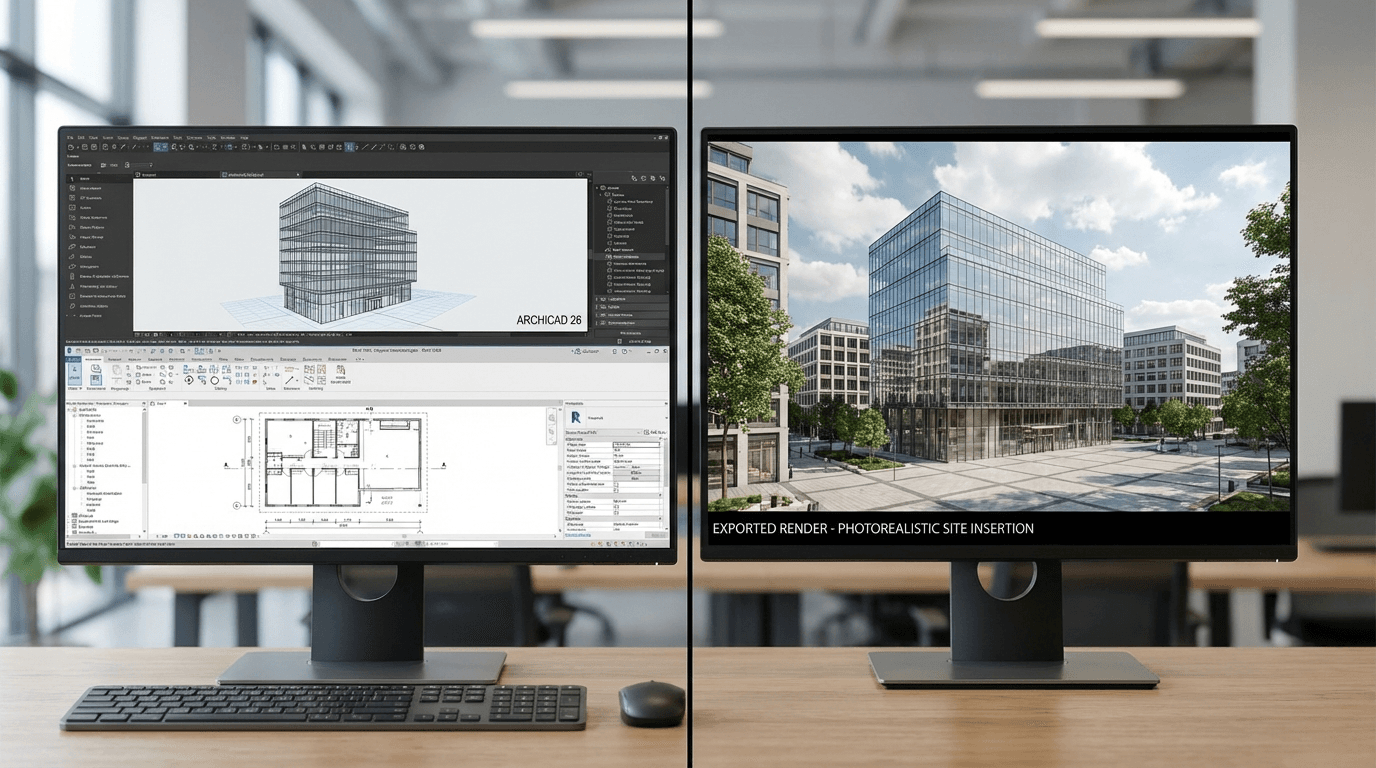
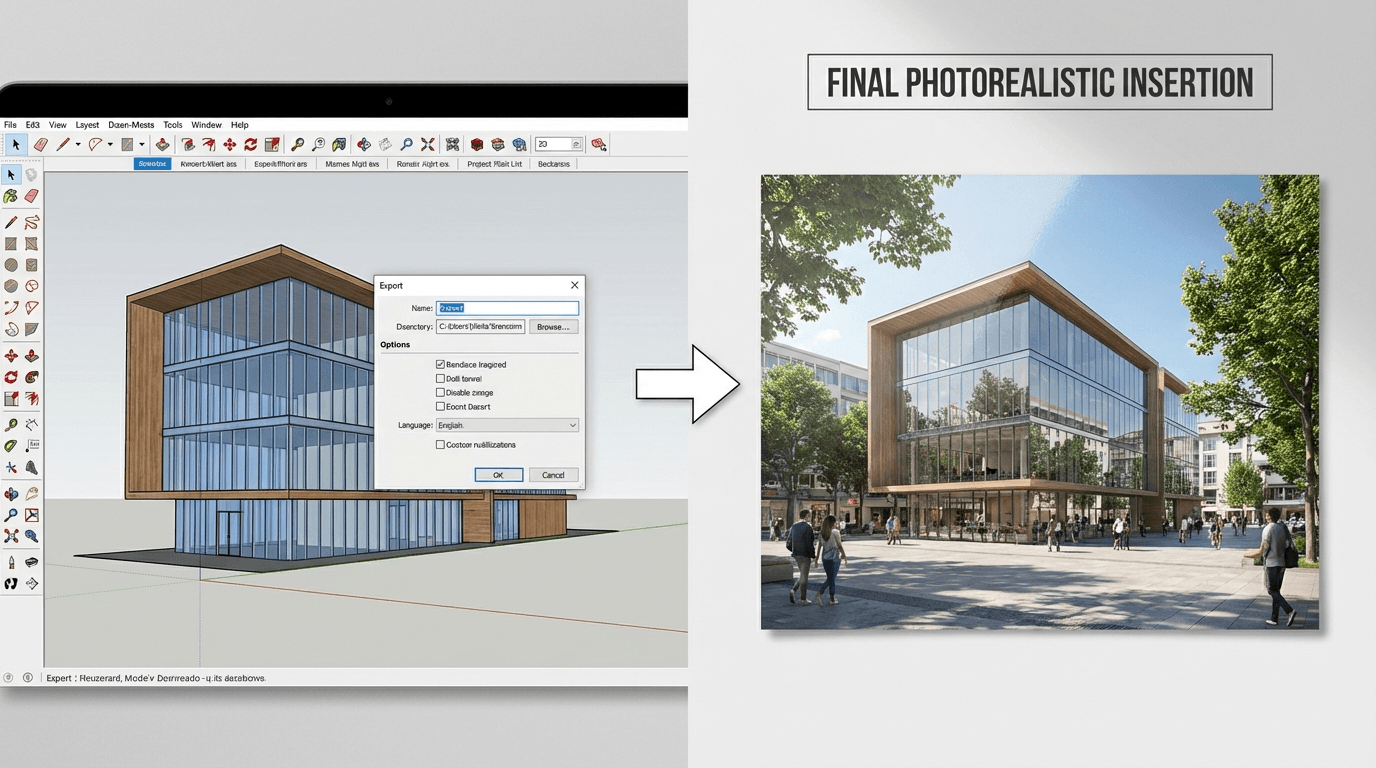
Combined with 3D Insertion, it becomes possible to go from a SketchUp model to a photorealistic insertion in just a few minutes.
Preparing your model for export
Before exporting, a few settings optimize the final result quality.
- Framing: position the camera to show the building from the desired angle, preferably matching the site photo
- Visual style: disable sketch-mode edges. Use a realistic or clean render style
- Background: use a neutral background (white or gray) to help AI masking
- Resolution: export at minimum 1920px wide for HD results
Exporting from SketchUp
Two main methods are available to get a usable image.
Direct export: File > Export > 2D Image. Choose PNG for transparency or JPG for a lighter file.
With a render engine: if you use V-Ray, Enscape, or Lumion, export the final render as PNG. Quality will be higher but the process takes longer.
In both cases, the 3D Insertion AI adapts to the source image quality.
Generating the insertion with 3D Insertion
Once your image is exported, the process is simple and fast.
- Upload your SketchUp render to the platform
- Add a site photo or describe the context (urban, rural, coastal...)
- Launch generation: AI analyzes perspective, harmonizes light, and integrates the building into the environment
- Download the result in HD for your project file
Tips for optimal results
Best practices from our SketchUp users' experience.
- Align your SketchUp model angle with the site photo angle
- Avoid harsh shadows in the export — AI handles lighting better from a neutral render
- For building permits, export multiple views (main facade, side view, distant view)
Concrete time savings
A SketchUp user spends an average of 3 to 6 hours on Photoshop for a manual insertion. With 3D Insertion, the same result is achieved in under 2 minutes.
This productivity gain allows you to multiply variants and viewing angles without impacting project deadlines.